Overview
Ease Voice Lab lets you turn any text into professional-quality audio with AI voices. This tutorial walks you through generating your first voiceover — no experience needed.
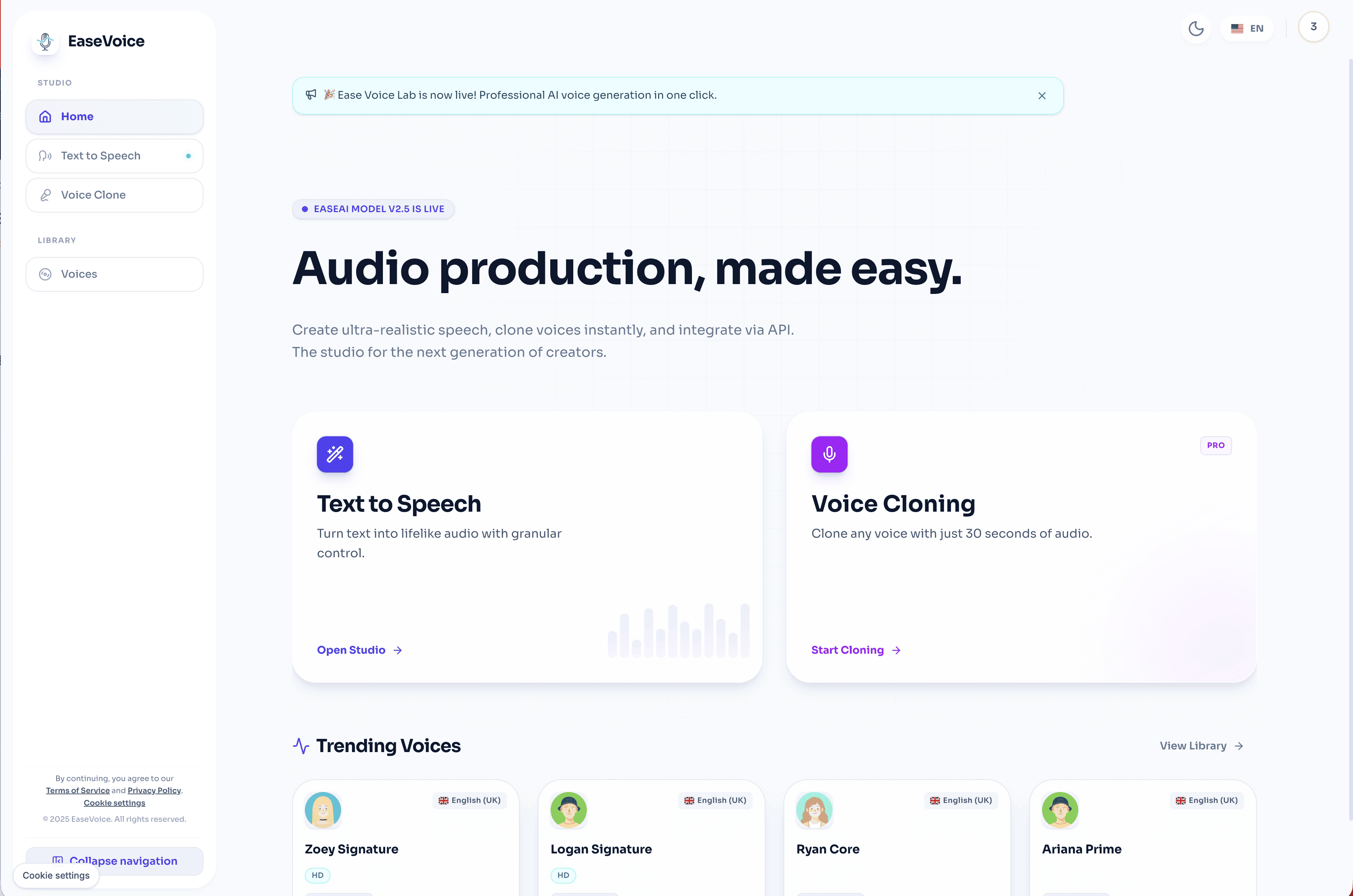
Step 1: Open the Text to Speech Studio
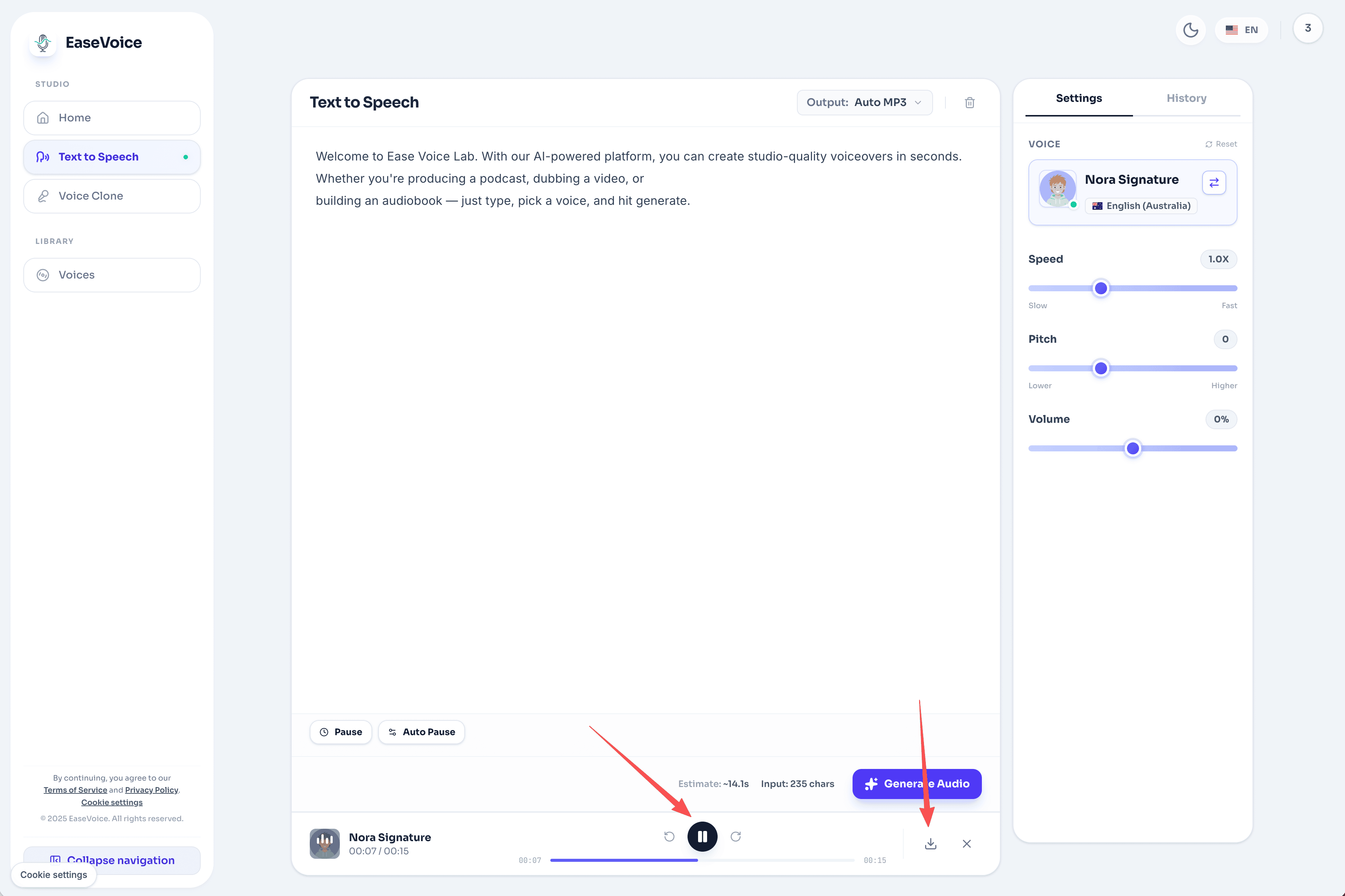
Click Text to Speech in the left sidebar, or hit the Open Studio button on the home screen.
You'll see the editor on the left and voice settings on the right.
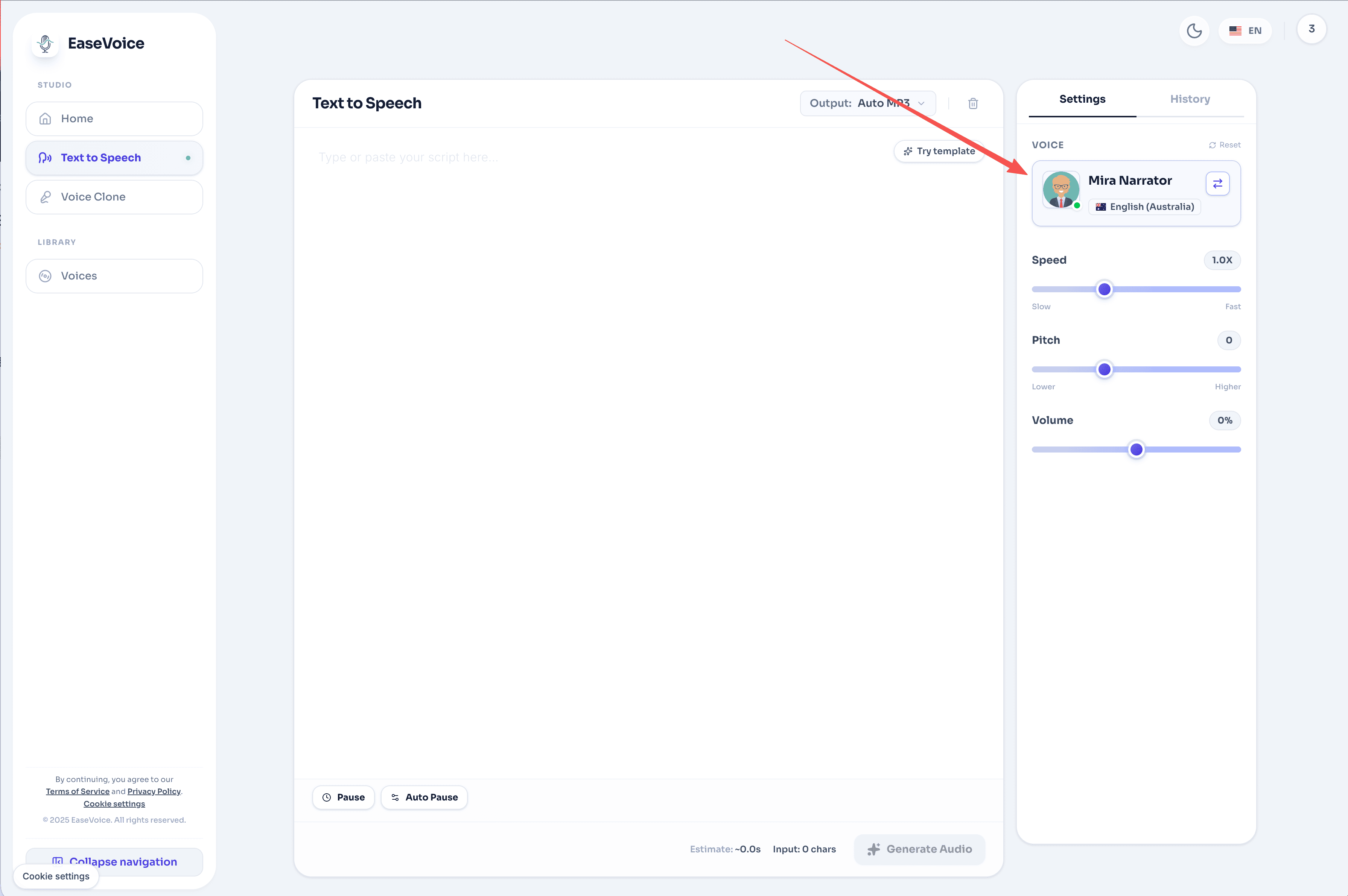
Step 2: Choose a Voice
Click the voice card on the right panel to open the Voice Library.
Browse voices by language, gender, or style. Click the play icon to preview a voice, then click Use Voice to select it.
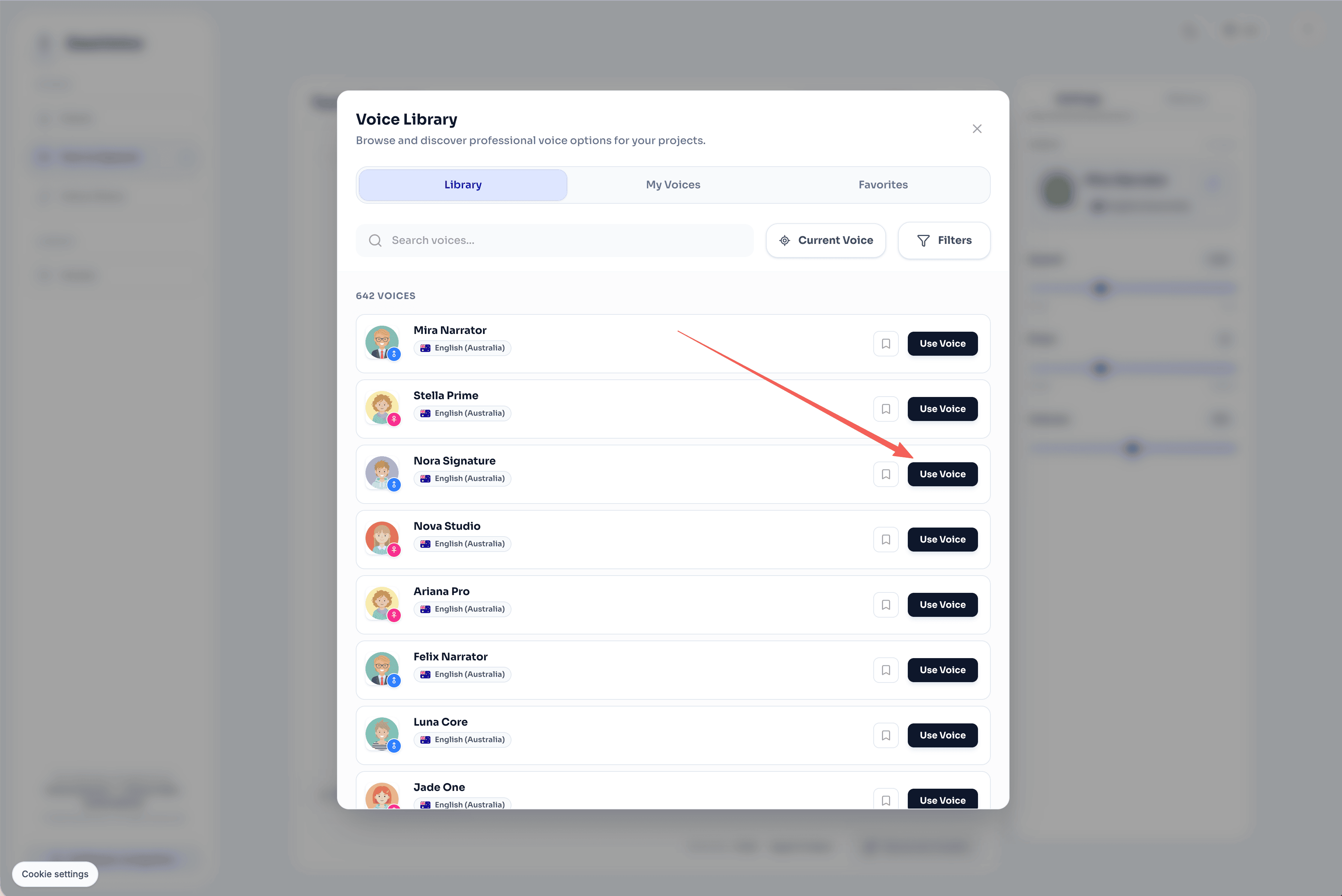
Tip: Look for the HD badge for higher quality voices, or filter by Emotion to find voices with expressive style options.
Step 3: Enter Your Script
Type or paste your text into the editor. You can write anything — a narration, a product intro, a podcast script.
Here's a quick example you can copy:
Welcome to Ease Voice Lab. With our AI-powered platform,
you can create studio-quality voiceovers in seconds.
Let's get started.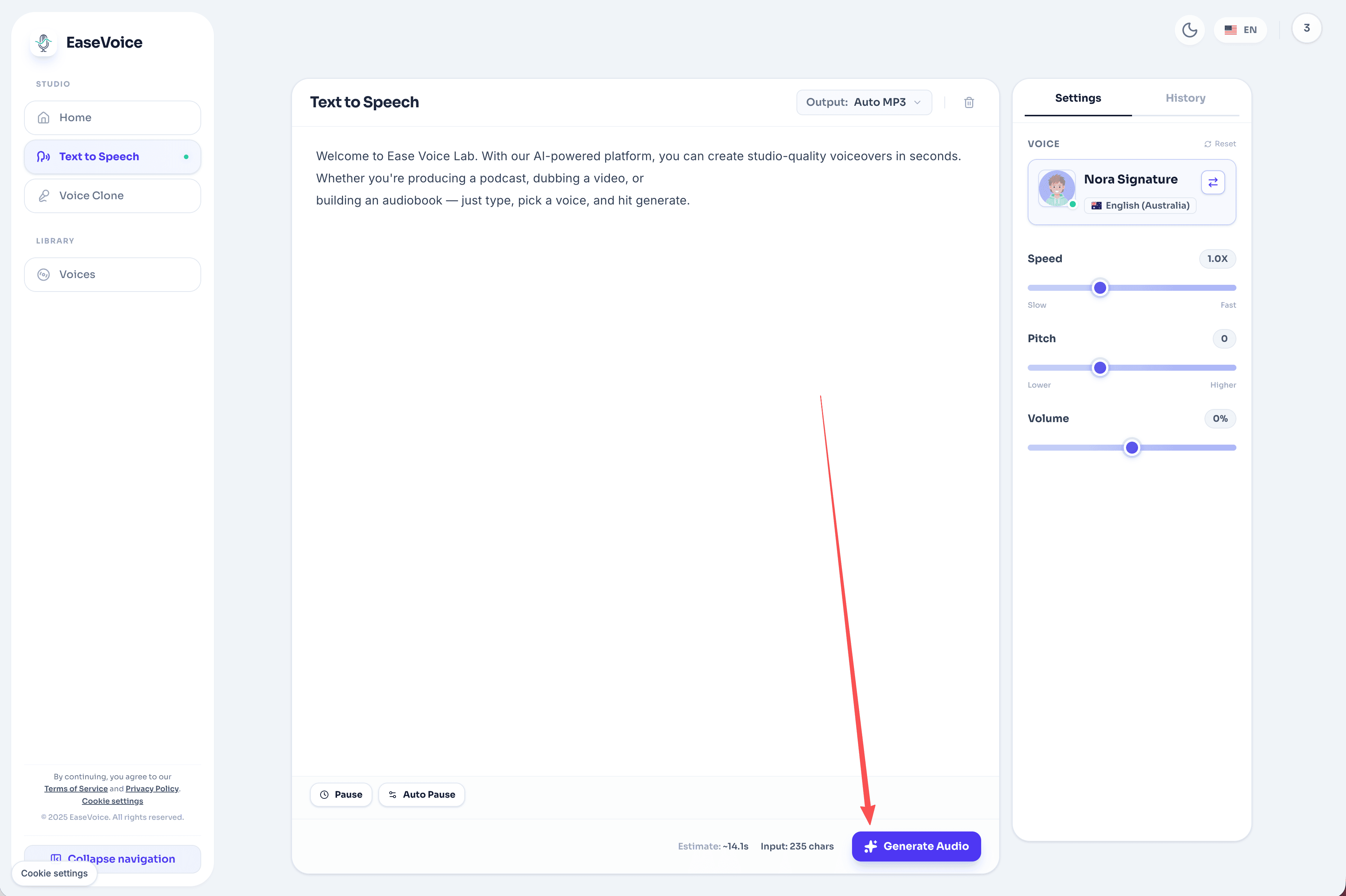
Step 4: Adjust Settings (Optional)
Fine-tune the output using the Settings tab on the right:
| Setting | What it does |
|---|---|
| Speed | Slower for narration, faster for ads |
| Stability | Lower = more expressive, Higher = more consistent |
| Pitch | Adjust the voice tone higher or lower |
Leave them at default if you're unsure — the defaults work great.
Step 5: Generate
Click the Generate Audio button. Your audio will be ready in a few seconds.
Once complete, you can:
- Play the audio directly in the browser
- Download it as an MP3 file
What's Next?
Now that you've generated your first voice, try these:
- Add emotions — Select text and apply Happy, Sad, or Excited tones
- Clone your voice — Upload a 30-second sample to create a voice replica
- Explore the voice library — Discover 100+ voices across 10+ languages